Skip to main content1. Accessing the Graph
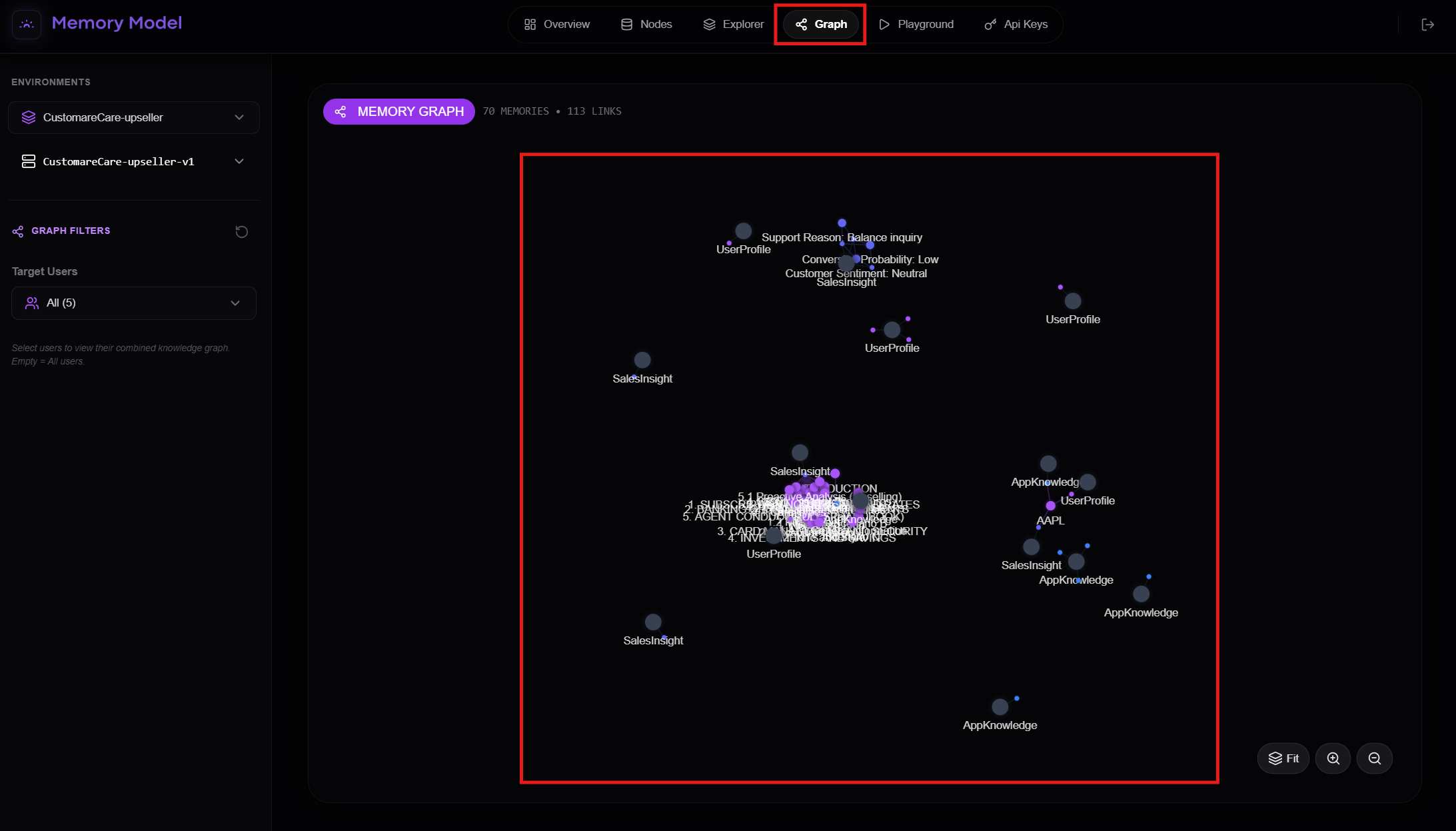
Navigate to the “Graph” tab in the top menu bar to open the visualization interface.
2. Interactive Topology
The central pane displays your Knowledge Base as a dynamic network:
- Nodes: Represent specific memory clusters (e.g., UserProfile, SalesInsight, AppKnowledge).
- Links: Visual lines representing the semantic connections and relationships between these data points.
- Stats: A summary at the top left (e.g., 70 Memories • 113 Links) gives you an immediate metric of your graph’s density.
3. Filtering and Navigation
Customize your view to focus on specific data segments:
- Graph Filters: Located in the left sidebar, this allows you to filter the graph by “Target Users” (e.g., selecting specific users to view their combined knowledge graph).
- View Controls: Use the toolset in the bottom right corner to Fit the graph to the screen, or Zoom In/Out to explore specific clusters in detail.
